Know Your Machine (Hardware & OS)
Here’s how to capture your system info — step-by-step, based on your operating system:
For Windows:
- Open System Info
- Press Windows Key + R, type msinfo32, and press Enter
or - Right-click Start, select System
- Press Windows Key + R, type msinfo32, and press Enter
- Look For These Details:
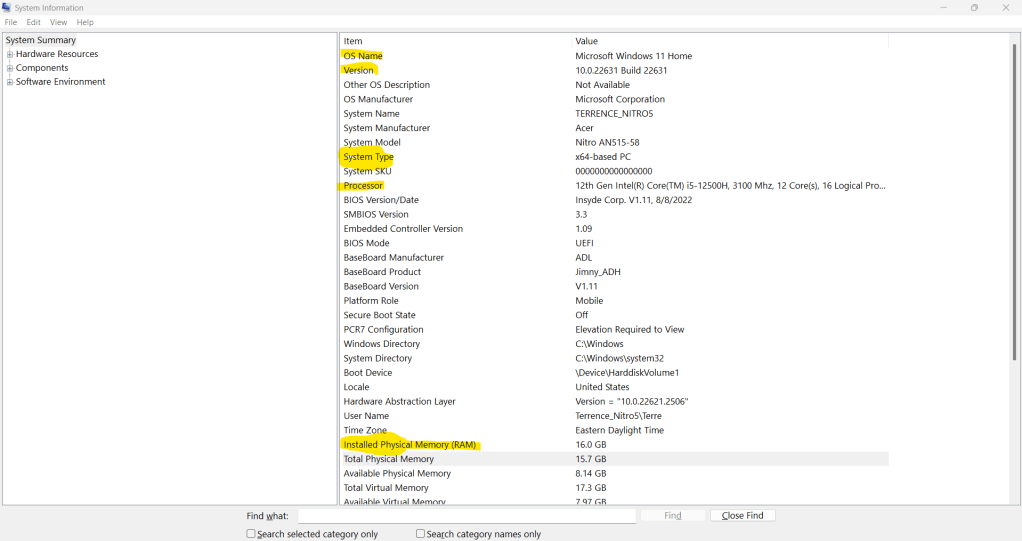
- OS Name and Version
- Installed RAM
- Processor
- System Type (32-bit or 64-bit)
- Storage (You can check this separately: open File Explorer > This PC to see your drive type; SSD or HDD usually shows up)
- Take a Screenshot:
- Press Windows + Shift + S to open Snipping Tool
- Highlight the system info window
- Paste into Paint or any image app and save
or use Snipping Tool directly from the Start menu
For macOS:
- Open System Info
- Click the Apple icon () > About This Mac
- Look For These Details:
- macOS version
- Memory (RAM)
- Processor
- Storage (Click Storage tab to see SSD/HDD)
- Take a Screenshot:
- Press Command + Shift + 4
- Drag to select the window
- Screenshot saves to desktop by default
For Linux (Ubuntu example):
- Open System Info
- Go to Settings > About
or open Terminal and type: hostnamectl
- Go to Settings > About
- Look For These Details:
- OS and version
- RAM
- CPU info
- Storage (use lsblk or df -h in terminal)
- Take a Screenshot:
- Press PrtSc or Shift + PrtSc
- Use screenshot tool (e.g., Flameshot, built-in Screenshot)
OS Comparison: Windows vs macOS
Windows is known for its broad compatibility with hardware and software, making it a go-to for business and gaming. macOS, on the other hand, offers a sleek interface and is tightly integrated with Apple hardware, often making it more stable and secure by design. Windows allows more customization and is common in enterprise environments, while macOS is popular in creative industries. Both offer strong performance, but support and troubleshooting can differ greatly between the two. For IT support roles, being comfortable with both systems is a major advantage.
Hardware Test & Troubleshooting
Device tested: USB flash drive
What happened:
I plugged in the USB drive, and a message popped up saying the drive was not formatted correctly and couldn’t be opened.
Troubleshooting steps taken:
- I confirmed the USB was recognized in Disk Management but showed as “RAW” (not a supported file system).
- I checked the drive on another computer — same issue, confirming it wasn’t my USB port.
- I right-clicked the drive and selected Format, chose FAT32, and completed the format.
- After formatting, the USB was readable and could be used normally.
🧾 Troubleshooting Log Template (Filled):
| Step | Action Taken | Result | Notes |
|---|---|---|---|
| 1 | Plugged in USB | “Drive not formatted” message | Drive detected but unreadable |
| 2 | Checked Disk Management | File system showed as RAW | Drive visible but unusable without formatting |
| 3 | Tested USB on another computer | Same issue occurred | Confirms it’s a drive issue, not a port problem |
| 4 | Formatted drive to FAT32 | Drive became usable | Lost old data, but USB now works correctly |
 RiseWithTech
Leave a comment